
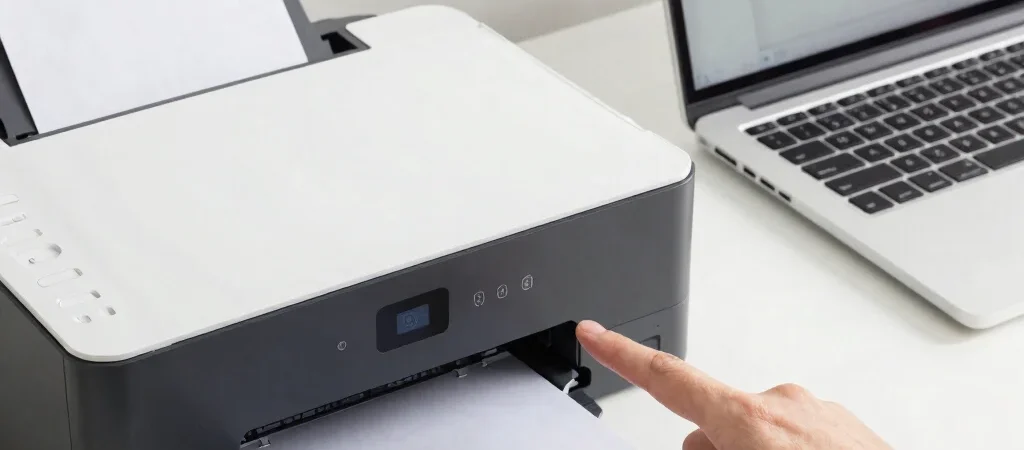
You finish the wireless setup, send a document, and nothing prints. Before restarting everything, check which network the printer joined and whether the computer is using that same home network. A few deliberate checks are usually more useful than repeating the setup at random.
Start With the Network Name
On the printer’s screen or setup menu, open the wireless network settings and select your home network by its exact name. Enter the password carefully, paying attention to capitalization and similar-looking characters. If your router has separate network names, check the printer’s instructions for which network types it supports.
Confirm that the computer or phone you are printing from is connected to the same home network, rather than a guest network or a mobile hotspot. A device on a guest network may be prevented from finding other devices, even when both show an internet connection. Network names can look alike, so compare them rather than relying on memory.
Use the Correct Setup Tool
If the printer asks for an app or driver, get it from the printer maker’s official website or its listed app store page. Follow the setup tool’s prompts for adding a wireless printer, and choose the matching model if it asks. Avoid installing several different printer tools while troubleshooting; it can make it harder to tell which setup is active.
Check Before Starting Over
Look at the printer’s wireless indicator or network status screen to see whether it reports a connection. If the printer is connected but still unavailable, check that the computer has selected the correct printer and that the printer is awake. Restarting the printer and router can help after those checks, but use the router’s instructions and allow it time to reconnect.
If setup still fails, consult the instructions for your specific model: wireless requirements and menu names vary. A temporary USB connection, if your printer supports it, can help complete setup or print while you investigate the network. Keep a note of the exact message on the printer or computer; it makes the next troubleshooting step more focused.